 blockt
Your first call filter
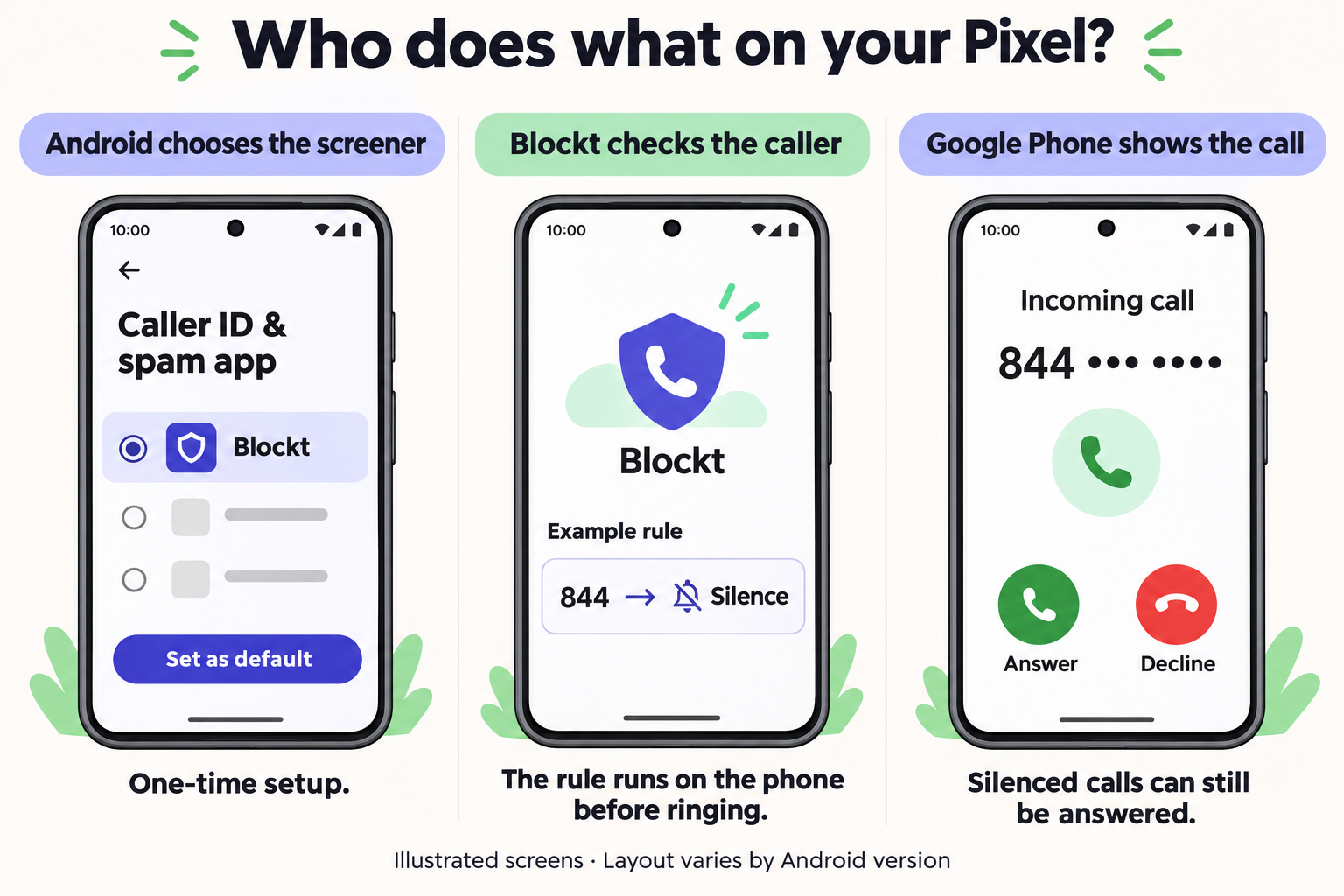
Keep Google Phone for calls and let Blockt decide which ones ring. Here’s how to quiet a recurring 844 caller on a Pixel using Google Fi.
Turn on screening
- Open Blockt → Home. Tap Turn on screening, then Choose Blockt. If Home asks you to add a filter first, make the 844 filter below and return here.
- In Android’s Caller ID & spam app picker, select Blockt. Leave Phone by Google as your phone app.
- Return to Home to see your screening status. Saved contacts are protected by default. You can start here with optional permissions turned off.
Quiet calls from 844
Open Filters → Add filter. Choose Silence and the Area code pattern, enter 844, then save. This covers callers displaying a complete +1 number with area code 844, including legitimate businesses. Your protected contacts and exact Always allow entries still get through.
Already received one? In Activity → All screened calls, tap Filter caller on the allowed call. For an 844 caller, Blockt proposes All 844 numbers. Choose Only this number if you want a narrower match.
Check what will happen
Open Test a number from Home. Enter a complete number with the area code you chose. Read the decision and the reason, then try a number from another area code. The preview places no call and adds nothing to Activity. A live call also has contact and repeat-call information.
- Allow
- Google Phone handles the call normally. Your ringer and Do Not Disturb settings still apply.
- Silence
- Blockt asks Android to quiet the call. You can still answer or decline it in Google Phone.
- Block
- Blockt asks Android to reject the call. Your carrier and phone settings determine what the caller hears.
Let someone through
Open the call’s Details → Add to Always allow and confirm the complete number. This makes one exception to the 844 filter. To let every 844 caller through again, turn off that filter in Filters. If you’re expecting a callback from an unknown number, Home → Pause suspends Blockt for 30 minutes. Tap Resume to end the pause early.