 blockt
What each setting does
Expand a group in Blockt’s Settings and tap the ⓘ beside an option for a quick explanation. Here are the defaults, when you might change them, and what Android will ask for.
Contacts and reviewed numbers
- Protect saved contacts · On
- Saved callers pass ahead of your filters. Without Contacts access, Android normally skips Blockt for contact calls. Turning protection off asks for Contacts access so matching rules can apply to saved callers. Exact Always allow entries keep their priority.
- Reviewed numbers · Block
- Applies to active, exact entries on the reviewed list bundled with the app. Choose Silence to leave those calls answerable, or Off to ignore this list. Matching happens on the phone.
Ringing and notifications
- Incoming filter shortcut · Off
- Offers a quiet, short-lived notification for an ordinary allowed call with a complete number. Open it to choose a filter. The public lock-screen version hides the number.
- Match notifications · Off
- Offers a quiet notification for silenced or rejected calls. Tap one to read its reason in Activity. Android 13 and later asks permission to show notifications for either shortcut.
- Silence compatibility · Optional on Android 12+
- Can quiet a separate dialer ringtone for a matching call or a still-ringing call when you save a filter. The device-wide call-sound change is brief. A second call ringing at the same time can also be quiet. Your ring volume setting is preserved.
Understand the Android prompts
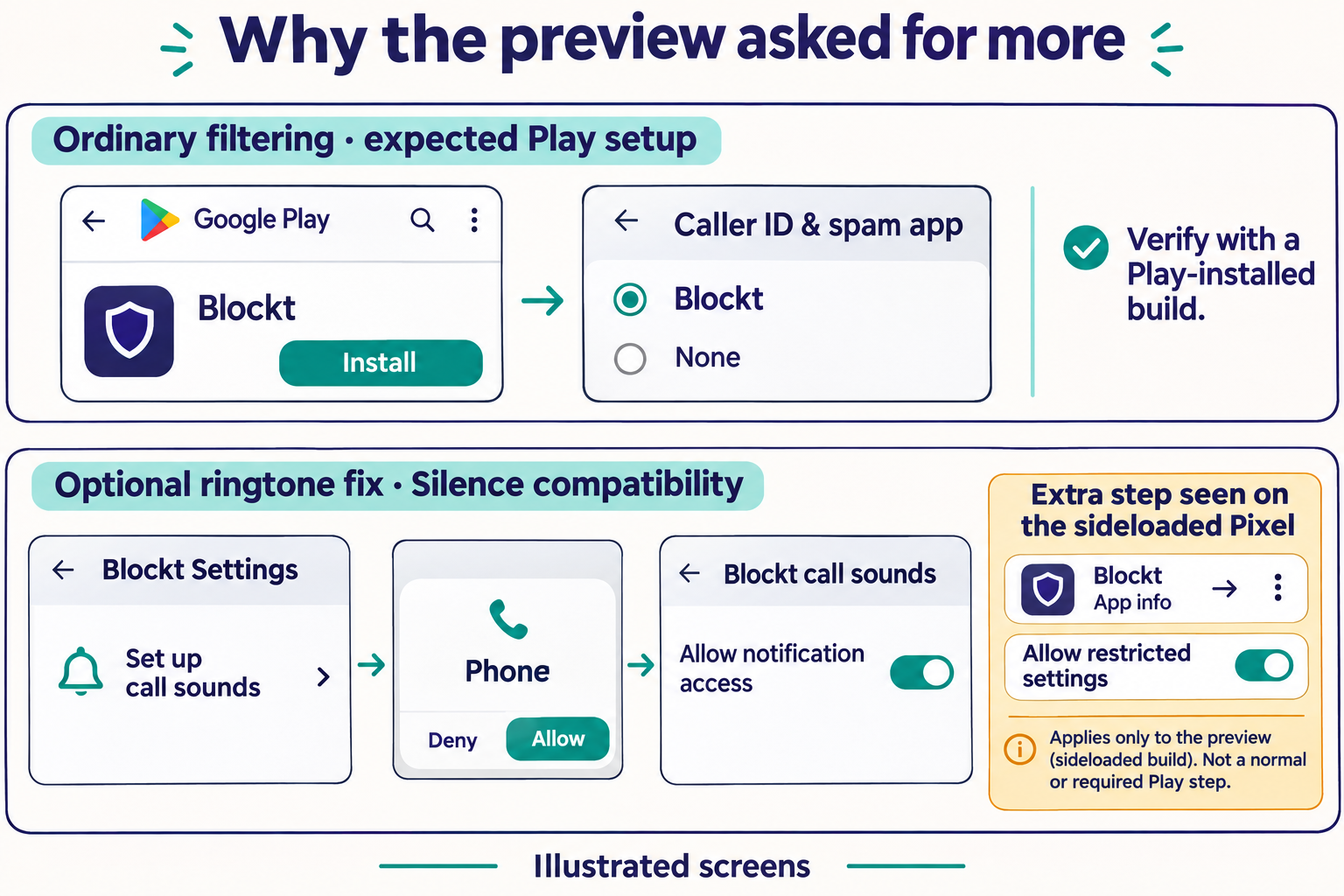
The Caller ID & spam app role is enough for ordinary filtering. Posting a quiet notification and granting a service special notification access are different Android controls.
For optional call sounds, Phone permission tells Blockt whether the phone is ringing, answered or idle. A notification listener lets it request Android’s call-sound control. The listener excludes all notification categories. You can switch off Blockt call sounds in Android’s notification-access settings.
On our sideloaded Pixel preview, Android restricted the optional listener. If you trust the installed build and want the feature, open Android Settings → Apps → Blockt → ⋮ → Allow restricted settings, then return to call-sound setup. The menu can differ by version and installation source. You can leave it alone and still use filters. Android’s explanation of restricted settings
Advanced screening
- Silence numbers outside contacts · Off
- Silences otherwise unmatched non-contact callers. Consider which callbacks you expect before enabling it.
- Failed carrier verification · Off
- Choose Silence or Block for an explicit carrier verification failure on Android 11 or later. An unverified call by itself does not trigger this signal.
- Numbers like mine · Off
- Save your own complete +1 number on the phone, then choose an action for other numbers sharing its first six national digits. Clear your number to disable it.
- Persistent caller · Off
- Choose an action for the third eligible call from one number within ten minutes. The action lasts 24 hours. Protected contacts and Always allow take priority.
Appearance, shortcuts and privacy
Appearance follows your device by default. You can choose Light or Dark. Filter shortcuts controls which pattern types appear first in Add filter. Area code, toll-free, states and countries are pinned initially. The other choices are under More patterns.
Privacy and app details includes the version, default-app settings and privacy information. Call activity and filters stay on the phone. The private preview also has Beta tools for a diagnostic report you can review before sharing. Blockt privacy policy